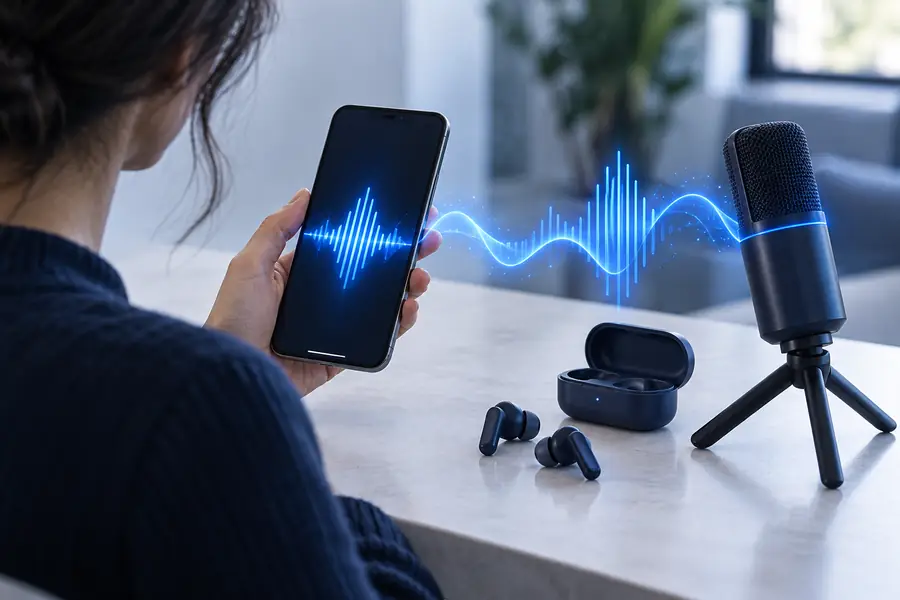
Android workflow

How to use voice ai on android for everyday tasks

Learning how to use voice ai on android starts with a browser, a clear prompt, and the right microphone permission. This guide shows how to move from setup to a usable voice workflow without confusing phone controls with product features.

Review output before publishing
Android-focused voice AI workflow example

Keep exploring

Related guides

Choose the route that matches your device and the kind of voice task you want to complete.

Know the edges

Limits and edges

Android can be a convenient starting point, but the phone, browser, and voice tool each impose different boundaries.

A browser is not a native app

Opening a voice tool in Chrome or another Android browser does not automatically provide a dedicated app experience, background controls, or system-level integration.

Workaround

Save the supported web page as a shortcut and keep the browser updated.
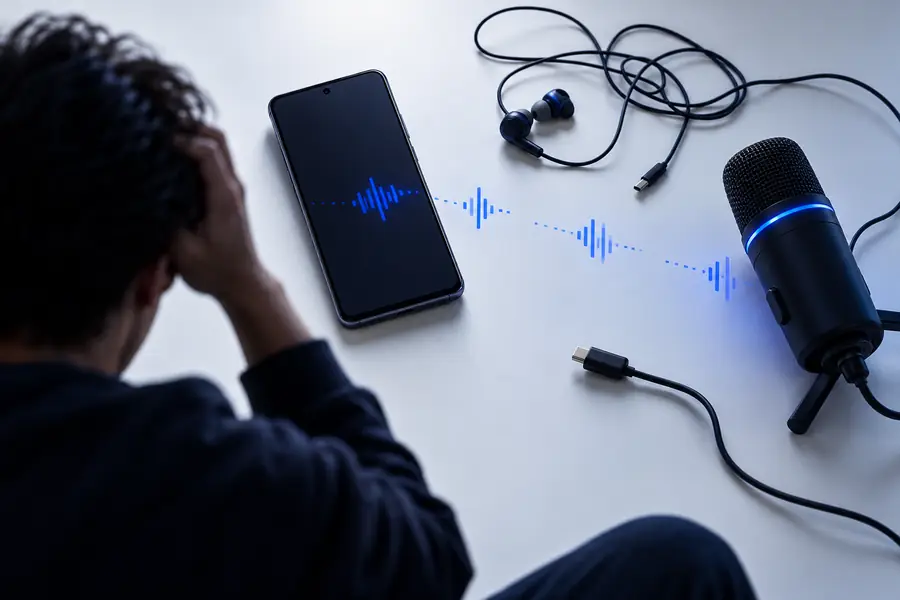
Microphone access can be blocked

Android may deny microphone permission, the browser may have its own site setting, or another app may be using the microphone.

Workaround

Check both Android app permissions and the browser site permission, then close competing recording apps.

Mobile editing is limited

A phone screen is practical for short prompts and reviews, but long scripts, detailed revisions, and file organization can become awkward.

Workaround

Draft or revise longer text on a computer, then return to Android for a quick prompt or review.

Results still need review

A generated or transformed voice output may need checks for pronunciation, pacing, tone, names, and suitability for its audience.

Workaround

Listen through the complete result before sharing it, especially for client, educational, or public material.

Simple setup

How the Android workflow works

The reliable pattern is straightforward: prepare the request, grant only the access you need, and review what comes back.

  1. 1

    Prepare a specific request

    Write the text, describe the desired tone, and state the audience or format. Specific instructions reduce back-and-forth on a small screen.

  2. 2

    Open the tool and allow access

    Use a current Android browser, open the relevant workflow, and approve microphone access only when the task genuinely needs recording.

  3. 3

    Review before you reuse it

    Check the wording, pronunciation, timing, and overall fit. Save or share the result only after it meets your purpose.

At a glance

Three practical checkpoints

These checkpoints keep a mobile session focused without implying that every Android device or browser behaves identically.

Keep the phone charged and connected while the session is active.
1 device
Check Android and browser microphone access when recording is involved.
2 permissions
Review wording and playback before publishing or sharing the result.
3 checks

Useful scenarios

Who benefits from an Android workflow

A phone-based setup is most useful when the task is short, mobile, and easy to review as you go.

Content creator

Capture a quick idea for a short video while away from a desk, then turn it into a clearer voice task.

You keep the concept moving instead of waiting to return to a computer.

how to use voice ai on iphone

Small business owner

Prepare a concise spoken introduction or product explanation from an Android phone between meetings.

A focused prompt gives you a reviewable draft without requiring a full desktop setup.

how to use voice ai on pc

Student

Turn a rough explanation into a structured spoken practice task, then listen back for clarity.

The phone becomes a convenient review device while you remain responsible for accuracy.

ai voice generator

Remote worker

Use a short mobile session to test wording, pronunciation, or a meeting introduction before joining a call.

You can make a quick adjustment without opening a full production workflow.

how to use voice ai online

Choose the right screen

Android browser or computer workflow

Both routes can support voice tasks, but each is better suited to a different stage of the work.

Android phone
Computer

Best for

Android phone

Short prompts, quick checks, and mobile sessions

Computer

Longer drafts, detailed editing, and file organization

Input method

Android phone

Touch keyboard and optional microphone

Computer

Physical keyboard, mouse, and optional microphone

Screen space

Android phone

Compact view with less room for side-by-side review

Computer

More room for instructions, text, and output together

Permission checks

Android phone

Android and browser permissions may both matter

Computer

Browser and operating-system permissions may both matter

Best review style

Android phone

Listen and make small corrections

Computer

Compare versions and make larger revisions

Portability

Android phone

Designed for work away from a desk

Computer

Better for a stable desk-based session

Recommended handoff

Android phone

Start or review a focused task

Computer

Polish, organize, and archive the finished work

See the shift

From phone setup to a usable result

The difference is not a promise of automatic quality; it is the difference between an unprepared mobile session and a reviewed voice task.

Unprepared Android voice workflow Before: open-ended setup
Organized voice generation workflow After: focused task
A clear request and a final review make the workflow easier to trust.

Start with one task

Turn your Android phone into a focused voice workspace

Open a single voice task, describe the result you need, and review the output before you move it into a larger project. A small, specific session is easier to troubleshoot than an overloaded prompt.

Start a voice task
  • Use a specific prompt
  • Check microphone access
  • Review every result

Common questions

Android voice AI FAQ

Many voice tools can be opened through a supported Android browser, but the exact experience depends on the service and browser. Check the page controls and allow microphone access only if the task requires recording.

Not necessarily. A browser-based workflow may be enough for a short prompt or review, while a dedicated app may provide different controls if the product offers one.

The browser or Android system may have denied microphone access, or another application may already be using it. Check the browser's site permission and Android's app permission, then retry after closing competing apps.

Android is convenient for short prompts, quick recordings, and reviewing results. Longer scripts, detailed editing, and file organization are usually easier on a computer with a larger screen and physical keyboard.

Yes. Listen for pronunciation, pacing, names, tone, and any wording that does not fit the audience. Treat the first result as a draft until you have checked the complete output.

Explore voices
Explore voices